HubSpot integrations guide

HubSpot integrations: native apps, Data Sync, API and middleware

A HubSpot integration connects HubSpot to another system so that data created or changed in one reaches the other without manual work. There are four ways to build one: a native app from the HubSpot App Marketplace, HubSpot’s own Data Sync, an integration platform (iPaaS) or middleware in the middle, or a custom integration on the HubSpot API. The right choice depends on the system on the other side, the volume of data and how specific your business rules are.

Definition

What is a HubSpot integration?

A HubSpot integration is a connection that moves data between HubSpot and another tool automatically, in one or both directions. The most common example in a revenue team is the CRM talking to the ERP: a deal won in HubSpot becomes an order in the ERP, and the invoice and payment status come back to the customer record.

Every good integration answers three questions before anyone builds it:

  1. What data moves. Which objects (companies, contacts, deals, orders, tickets) and which fields.
  2. In which direction and how often. One way or two ways, in real time or in scheduled batches.
  3. Which system is the source of truth for each field. When two systems disagree, one of them must win.

Without those answers, an integration copies mistakes faster than a person would. For the developer side of the API (authentication, objects and limits), see our HubSpot API guide. This guide covers the full picture: what to integrate, which path to choose, the Salesforce case, and what usually breaks.

In this guide

  1. Which systems to integrate first
  2. Native integrations and the App Marketplace
  3. Data Sync and Data Hub
  4. Custom API integrations
  5. Middleware and iPaaS
  6. How to choose
  7. HubSpot and Salesforce integration
  8. How to plan an integration
  9. Common integration failures
  10. HubSpot integration checklist
  11. Frequently asked questions

What to integrate

Which systems should you integrate with HubSpot first?

Start with the integration that today consumes the most manual work or produces the most errors. In most B2B companies that is one of these six.

  • ERP and billing

    Won deals become orders, and orders, invoices and payments flow back to the CRM, so sales and customer success see the financial history without asking finance.

  • Legacy systems

    Older systems without a modern API that still hold important data. They need an intermediate layer to talk to HubSpot.

  • WhatsApp and support channels

    Conversations logged on the contact and the deal, with the history visible to whoever picks up the account next.

  • External websites and forms

    Leads from any site or landing page reaching HubSpot with source, consent and the right fields.

  • Data enrichment

    Company and contact data completed automatically, so leads can be segmented, routed and prioritized.

  • Data warehouse and BI

    HubSpot data joined with data from other systems in one place, for analysis the CRM cannot do on its own.

If you are replacing a CRM rather than connecting to one that stays, you need a migration, not an integration. The HubSpot migration guide covers that path.

Native apps

Native integrations and the App Marketplace

Native integrations are ready-made connectors listed on the HubSpot App Marketplace that you install and configure without code. They are the fastest path when the other tool is popular and your needs match the standard field mapping the connector offers.

The marketplace lists thousands of apps, from Gmail, Outlook, Zoom, Slack and DocuSign to Stripe, Shopify, QuickBooks and Zendesk, covering email and calendar, video calls, e-signature, accounting, e-commerce, support and many more categories. Some are built and maintained by HubSpot; most are built by the vendor of the other tool.

What to check before you install one:

  • Which objects and fields it syncs. Many connectors move contacts and companies well but handle deals, line items or custom objects only partially or not at all.
  • Sync direction and frequency. One way, two ways, or two ways only for certain fields.
  • Conflict rules. What happens when both systems change the same field.
  • Plan requirements. Some connectors, or some of their features, need a specific HubSpot tier.
  • Who maintains it. The app vendor controls the roadmap. If a field you need is not supported, you usually cannot add it.

A native app typically runs in hours or days. Its limits are the fields and rules the connector offers.

Data Sync

Data Sync and Data Hub (formerly Operations Hub)

Data Sync is HubSpot’s own two-way sync engine for a set of popular apps, managed inside HubSpot rather than by a third-party connector. It is a good fit when the other tool is on the supported list and you need field mappings and filters that a basic connector does not give you.

HubSpot renamed Operations Hub to Data Hub. The data tools in that hub matter for integrations in three ways:

  • Data Sync with custom field mappings. Basic sync is available on free tools for supported apps, while creating and customizing field mappings requires Data Hub Starter, Professional or Enterprise.
  • Custom-coded workflow actions. JavaScript or Python inside a workflow, for logic native automation cannot express: calculations, lookups in other systems, calls to external APIs. Custom code actions require Data Hub Professional or Enterprise.
  • Data quality tools. Formatting, deduplication and data quality monitoring, which keep integrated data usable after it lands.

Data Sync is a strong middle option. It still covers a defined list of apps and standard patterns. When the other system is not on the list, or the rules are specific to your business, you move to middleware or a custom API integration.

Custom API

Custom API integrations

A custom integration is code that calls the HubSpot API and the API of the other system, built for your exact data and rules. It is the right path when no connector exists, when business rules are too specific for an app, or when the volume of data requires control over limits, batches and retries that generic tools do not offer. When the path is the API, these are the fundamentals that decide whether the integration survives daily use.

  • 01

    Authentication and apps

    Private or public app, OAuth, scopes and tokens. Getting scopes right from the start avoids blocked calls later.

  • 02

    Reading and syncing CRM data

    Objects, properties and associations, and how to keep another system current with HubSpot.

  • 03

    Search and filters

    The Search API to find records by filter and fetch only what changed since the last run.

  • 04

    Pagination

    Going through large volumes of records without skipping or duplicating any.

  • 05

    Webhooks

    Receiving HubSpot events in real time, with signature validation and safe handling of retries.

  • 06

    Code inside HubSpot

    Custom-coded actions in workflows for rules that native automation does not cover.

A custom integration takes weeks, with scope and testing, and needs engineering to build and to maintain. In exchange, it does exactly what the business needs. This is the work our GTM engineering team does every day; for a broader view of the role, read What is GTM engineering.

Middleware

Middleware and iPaaS

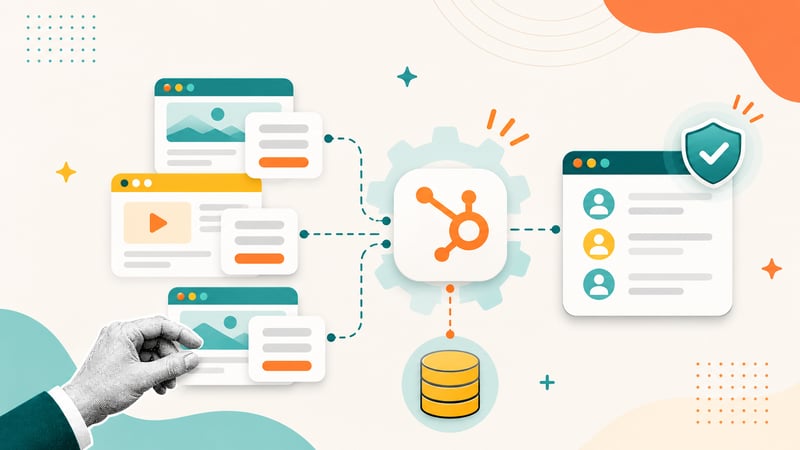
Middleware is software that sits between two or more systems, receiving, transforming and delivering data between them. An iPaaS (integration platform as a service) is a hosted version of that idea, with visual flows and prebuilt connectors.

They help when systems cannot talk to each other directly, when the same data must go to several destinations, or when you want a single place to see every sync.

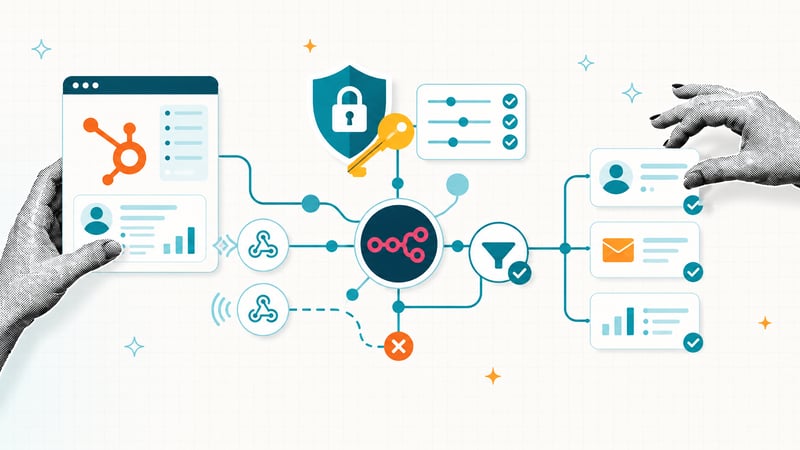
  • General workflow platforms such as n8n, Make or Zapier work well for orchestration and simple, low-volume automation. At production volume, watch for cost per execution, silent failures and complex logic that becomes hard to maintain.
  • Integration middleware built for critical syncs adds queues, automatic retries, monitoring and an audit log of every record touched. That is the layer that keeps a two-way ERP sync reliable.

At Insight Sales, integrations run on our own middleware, Insight Connect, so every sync is queued, retried, monitored and logged, and field mappings can change without redeploying code. Whatever tool you choose, ask the same question: when a sync fails at 2 a.m., who finds out, and how do you replay it?

How to choose

Native app, Data Sync, middleware or custom API

There is no single right path. The choice depends on the system on the other side, the data volume and how specific your rules are. Use this table as a starting point.

Native appData SynciPaaS or middlewareCustom API integration
How it worksReady-made connector from the App MarketplaceHubSpot’s own two-way sync for supported appsA platform in the middle receives, transforms and sends dataYour own code calling the HubSpot API and the other system’s API
Best forPopular tools with standard mappingSupported apps that need field mapping and filtersSeveral systems, transformations and moderate rulesSpecific business rules, high volume or systems with no connector
Time to runHours or daysDaysDays or weeksWeeks, with scope and testing
Main limitFields and rules the connector offersThe list of supported appsCost per execution; complex logic is hard to maintainNeeds engineering to build and maintain
Who maintains itThe app vendorHubSpot, configured by your adminThe team that configured the flowsThe engineering team responsible

A practical rule: try the native app first, move to Data Sync or middleware when you hit its limits, and go custom when the integration is critical to revenue and no tool expresses your rules.

Salesforce

HubSpot and Salesforce integration

HubSpot has a native, two-way Salesforce integration. It is used by companies that keep Salesforce as the sales CRM while marketing runs on HubSpot, and by companies in the middle of moving from one platform to the other.

What to know before you connect them:

  • Requirements. The connector needs a HubSpot Professional or Enterprise subscription (Marketing Hub, Sales Hub, Service Hub, Content Hub, Data Hub or Smart CRM) and a Salesforce edition with API access, or Salesforce Professional. It does not support Salesforce Group Edition. (Source: knowledge.hubspot.com, “Install the HubSpot-Salesforce integration,” read November 26, 2026.) In practice, Data Hub Starter is not enough for the Salesforce connector: the HubSpot side needs a Professional or Enterprise plan of at least one hub. Salesforce’s current Starter Suite and Pro Suite editions should be checked for API access before you plan the sync.
  • API call budget. The integration has a daily limit on API calls, and HubSpot notes that a single contact sync can take up to four API calls per record. In large databases, syncing everything can exhaust the Salesforce API allowance that other tools also rely on.
  • Inclusion list. Decide which HubSpot contacts should sync to Salesforce. Syncing every newsletter subscriber fills Salesforce with records sales will never work.
  • Leads versus contacts. Salesforce separates leads and contacts; HubSpot uses contacts with lifecycle stages. Agree on how each maps before the first sync.
  • Field ownership. For each mapped field, choose whether HubSpot wins, Salesforce wins, or the most recent value wins. “Two-way everything” is the fastest route to data overwriting data.
  • Custom objects. Syncing Salesforce custom objects requires a HubSpot Enterprise subscription. The custom object must exist in HubSpot first, it needs at least one required field, up to 10 custom objects can be mapped per HubSpot account, and Salesforce lookup fields on custom objects sync through associations, not field mappings. (Source: knowledge.hubspot.com, “Set up and use Salesforce custom object sync,” read November 26, 2026.)

When the native connector cannot express your rules, a middleware or API integration between the two platforms takes over. And if the plan is to leave Salesforce, a planned CRM migration keeps history and associations that a sync was never designed to carry. For the cost side of that decision, see HubSpot vs Salesforce: total cost of ownership.

Planning

How to plan an integration in five steps

Most integration problems start in planning, not in the code. These five steps come before the first line is written.

  1. 01 · Mapping

    Map objects and fields

    List which objects move between systems and the matching field on each side, with format and accepted values.

    Result: a field map both teams approve.

  2. 02 · Ownership

    Define the source of truth

    For each field, decide which system owns it. Without this rule, a two-way sync overwrites good data with old data.

    Result: no field with two owners.

  3. 03 · Direction

    Choose direction and frequency

    One way or two ways; real time through webhooks or scheduled batches. Real time only where the process needs it.

    Result: a sync sized to the need.

  4. 04 · Build

    Choose the path and build it

    Native app, Data Sync, middleware or custom API, with authentication, pagination, rate limits and retries handled from the first version.

    Result: an integration that holds up under real volume.

  5. 05 · Run

    Monitor and document

    Alerts on failures, a log of what synced and documentation of the field map.

    Result: errors seen before they become a sales problem.

Common failures

Common integration failures and how to fix them

Most broken HubSpot integrations fall into one of six cases. Each has a known cause and a known fix.

  • 403 scope errors

    The app lacks the permission the call requires, even after reinstalling. Fix: review the scopes the app requests against every endpoint it calls, then reauthorize.

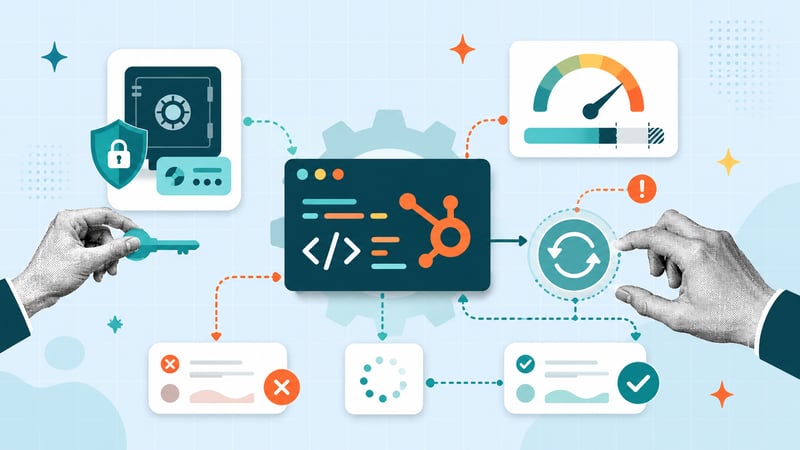
  • 429 rate limit errors

    Too many calls in a short period. Fix: pace requests, use batch endpoints and retry with backoff.

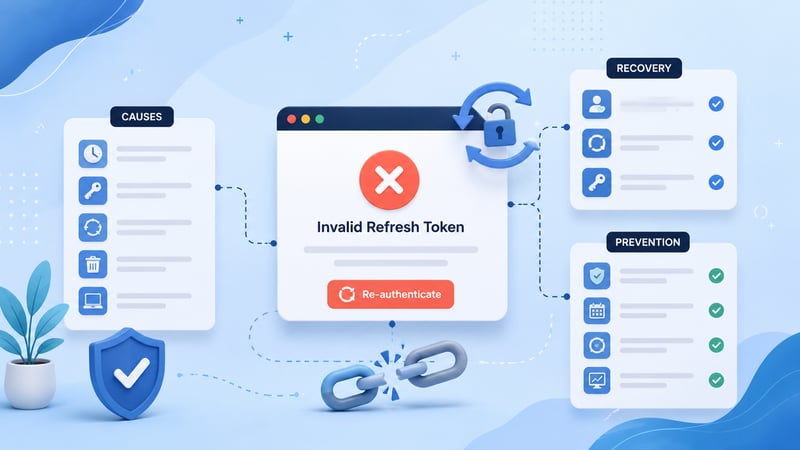
  • Invalid refresh token

    The access token stops renewing and the integration stops without warning. Fix: handle token refresh explicitly and alert on authentication failures.

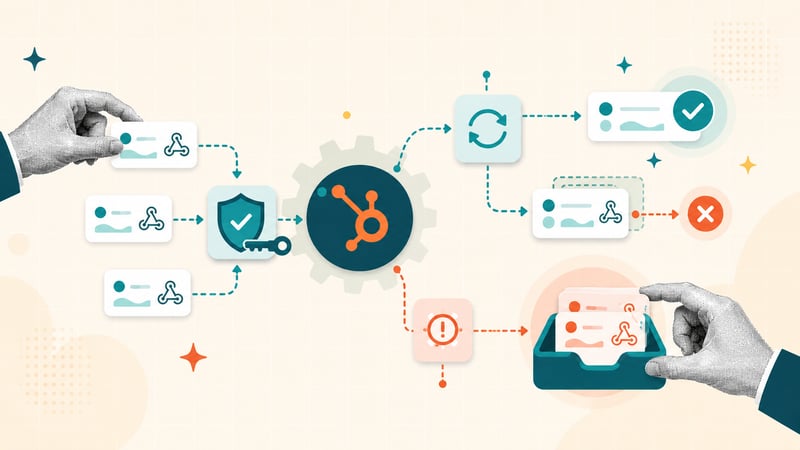
  • Webhooks delivered twice

    Retried events create duplicate records or tasks when the receiver does not handle repetition. Fix: make the receiver idempotent, so the same event processed twice has one effect.

  • Missed updates

    A sync fetches only part of the changed records, usually because of pagination or search limits, and the other system drifts out of date. Fix: paginate correctly and reconcile counts on a schedule.

  • An integration with no owner

    Nobody receives the alert when it fails, and the team learns about it from a customer. Fix: name an owner, send alerts to a channel someone reads and keep the documentation current.

Checklist

HubSpot integration checklist

Use this list before you call an integration done. Every item should have a name next to it.

  • Systems, objects and fields listed, with record counts on each side
  • Field map approved by the people who use the data
  • Source of truth defined for every synced field
  • Direction and frequency agreed per object
  • Path chosen (native app, Data Sync, middleware or custom API) and the reason written down
  • HubSpot plan and the other system’s edition confirmed to support the integration
  • Authentication, scopes and token refresh tested
  • Pagination, rate limits, retries and duplicate handling tested
  • Test run on real records in a sandbox or test portal, reconciled against the source
  • Alerts on failure going to a named owner
  • Log of what moved and when, readable by an admin
  • Documentation and a handover session for whoever runs it

From the blog

Latest articles on integrations and APIs.

See all integrations and API articles

Common questions

Frequently asked questions

What are the ways to integrate HubSpot with another system?

Four: a native app from the HubSpot App Marketplace, HubSpot’s Data Sync for supported apps, an iPaaS or middleware between the systems, or a custom integration built on the HubSpot API. Most companies use more than one, depending on the system.

Does HubSpot integrate with Salesforce?

Yes. HubSpot has a native two-way Salesforce integration for HubSpot Professional and Enterprise subscriptions and Salesforce editions with API access. Plan the inclusion list, field ownership and API call budget before you turn it on.

When is a custom integration worth it?

When there is no ready-made connector, when your business rules are too specific for an app, or when the data volume requires control over limits, batches and retries that a generic tool does not provide.

Should the sync be two-way?

Only when both systems need to edit the same data. In that case, define which system is the source of truth for each field. In most cases each field has one owner, and a one-way sync is simpler and safer.

What is middleware in a HubSpot integration?

Software that sits between HubSpot and other systems, receiving, transforming and delivering data. It helps when systems do not talk directly, when the same data goes to several places, or when you need queues, retries and a log for critical syncs.

Should we integrate or migrate to HubSpot?

Integrate when the other system stays in use, such as an ERP. Migrate when HubSpot replaces the current system, such as an older CRM. The HubSpot migration guide explains the migration path.

Need an integration built?

If a connector does not exist, a workflow cannot express the logic, or a sync keeps breaking, our engineers can scope it with you. Tell us which systems need to talk to HubSpot and you will get a written approach and data contract before anything is built.

See GTM Engineering